
View Configuration:
Supplier Management –> Approved Suppliers –> View –> Supplier 360 –> Supplier Scorecard –> View Configuration

View Configuration settings icon on the top right side: This function enhance transparency and user understanding by enabling all users to access and interpret the complete configuration settings, even when certain categories are not reflected in the chart due to lack of data.
Users can now click on a “View Configuration” option from the chart interface, which opens a read-only page displaying the full scoring configuration (e.g., Bad, Satisfactory, Good, Best, etc.). This allows users to understand all possible rating levels, including those not currently shown in the chart due to absence of data. After reviewing, users can simply close the tab to return to the main view.
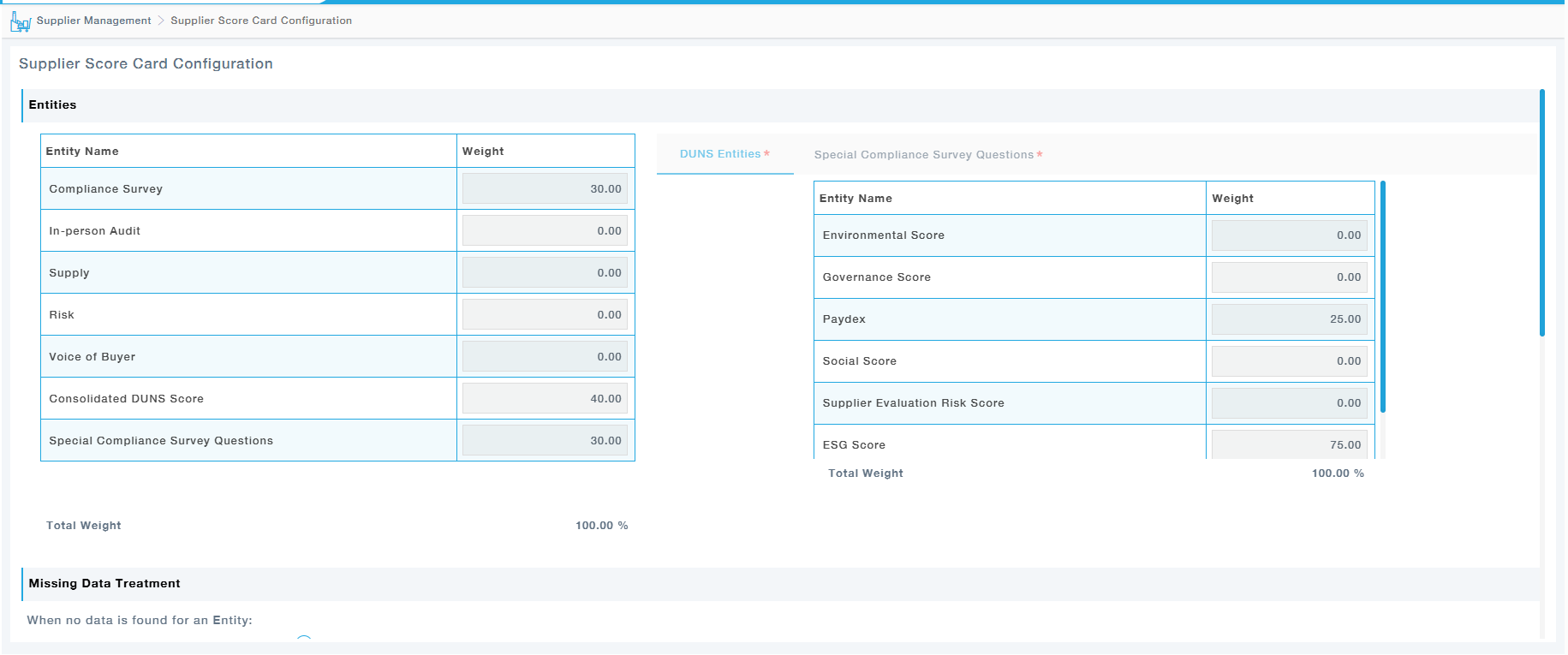
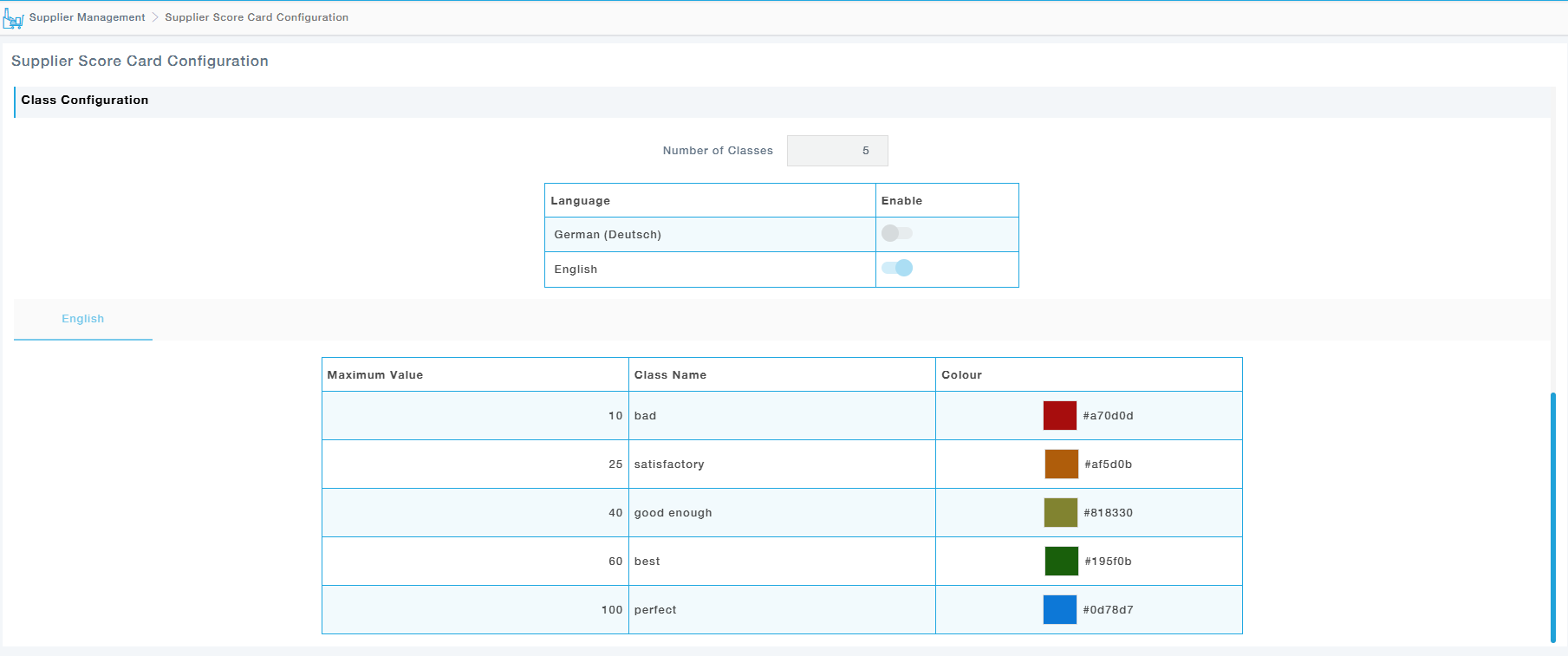
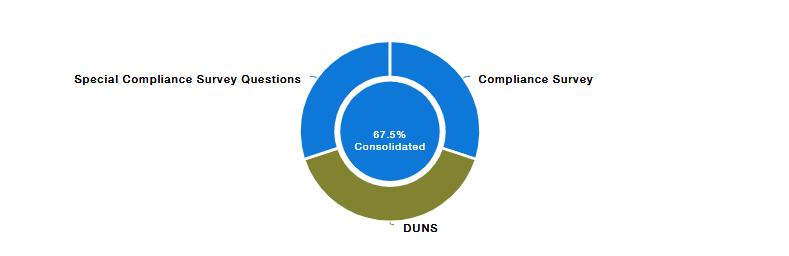
The user can choose the settings function to view it as single Duns Pie.
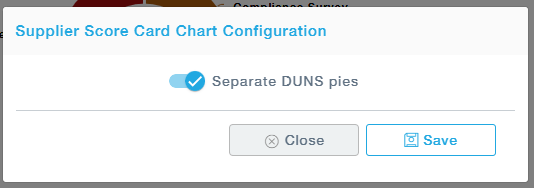
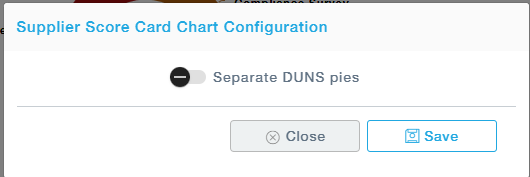
The user can choose the settings function to view it as single Duns Pie. The toggle button can be switched on and off based on the requirement. Switching off the Toggle button will provide a Pie chart as given below. The users can choose to view the Duns Pie based on the requirements
Also, there exists a configuration option that determines whether the displayed score should reflect the supplier’s latest evaluation or the average of all assessments. This will allow users to view either the latest survey status or the average of all surveys within a selected period, providing better control and flexibility in analysis.
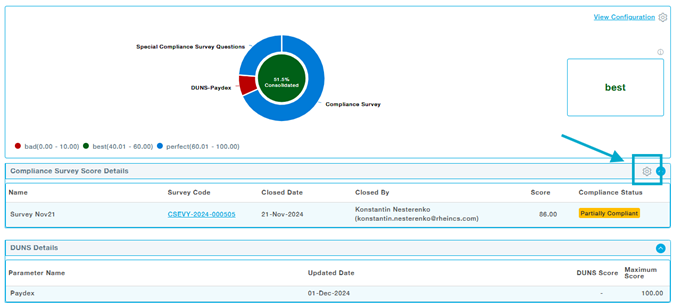
Click on the configuration shown above.
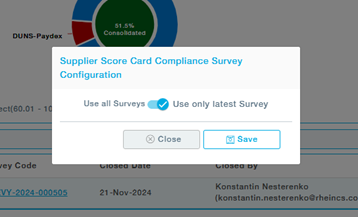
Choose the required configuration and click on save.