
As the name suggests this sub-menu will let you create a new requisition.
Menu Path: Requisition Management >> Material Requisitions >> Create New.
MeRLIN also comes with the capability to save a requisition as a template and reuse it again if required, which is detailed in the Create New Requisition from Existing Template section of this document.
Following are the steps to create New Requisition in MeRLIN.
- To create a New requisition, click on Material Requisitions from the sub menu under Requisition Management. Click on the Create New button and choose New Requisition.
- GENERAL INFORMATION: Provide the necessary information in the General Information tab that appears.
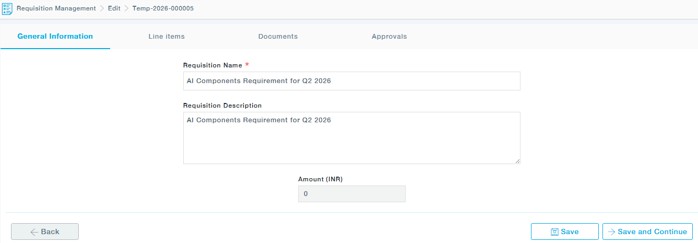
Description of Fields
- Requisition Name: Provide the Name of the Requisition
- Requisition Description: Description of the Requisition
Click on the Save and Continue button to proceed to the next tab.
You can also save the details as a draft and continue later by clicking on the Save button.
LINE ITEMS: Add line items to the requisition under this tab.
- Click Add New Row.
- By default, a blank line appears, allowing you to manually enter non-catalogue items. You can change the item type by clicking on the icon under the Item Hierarchy column of the selected line item row.
- Enter the Item Name, Description, Unit Price, UOM, Incoterm, Location, and Category of the item. Subsequent category levels can then be selected as applicable.
- Add any relevant Attachments or a Product Image to the line item.
- Under Action, you can choose to Cancel or Delete the line item as required.
- Click Add New Row to add an additional line item to the requisition.
Click on the Item Hierarchy icon to switch the item type between Non-Catalogue, Catalogue, or Service Item. If the item type is set to Catalogue Item, you can select the item from the available drop-down lists from their respective categories. The category and subsequent category levels will be defaulted automatically based on the selected item.
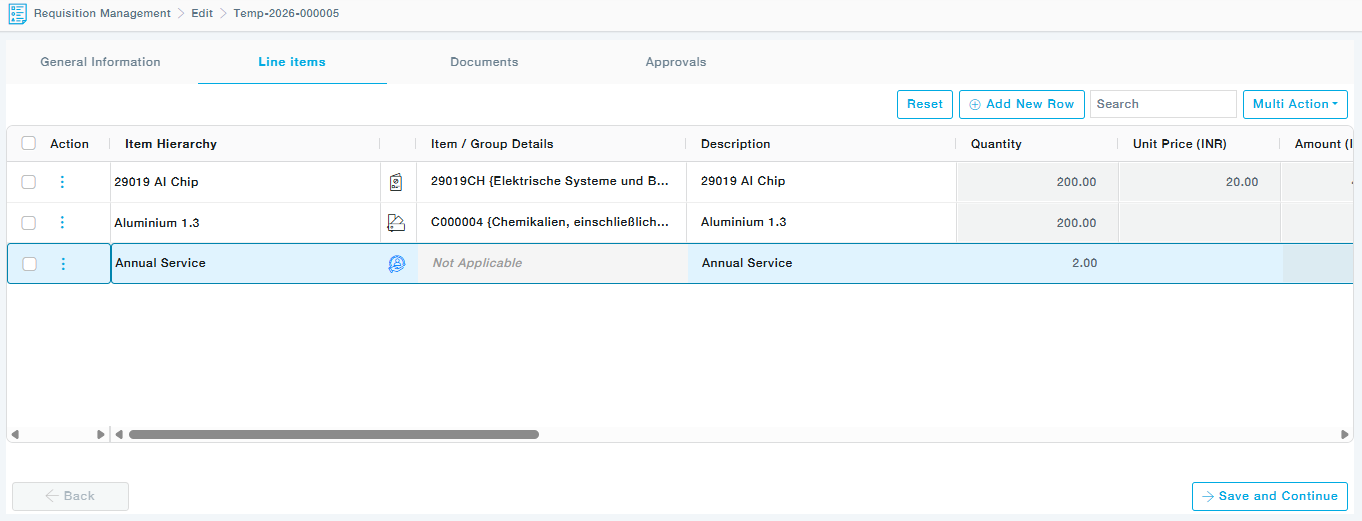
Alternatively to add Catalgues item from the list of items you can click on the Multi-Action >> Search for Catalogue Items.
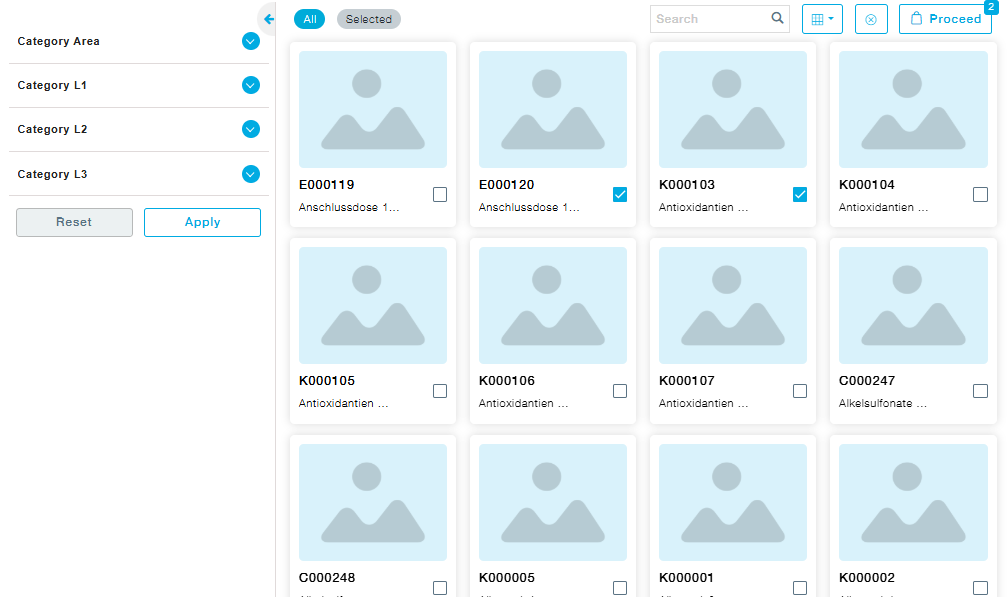
Here is the purpose of various functionalities available in the Items tab:
- Choose the Category Area and the Category levels. One or more categories can be chosen. Click on the Apply button to display the items belonging to the chosen categories.
- By default, the item list displays all the items mapped to the already selected Organization Unit. If the category filter is applied, only those items belonging to those categories will be listed.
- Search: Provide a few characters of the item to search for the item.
- Once the items are selected, choose Proceed.
If there are any active contracts available for the chosen items, the following screen appears. Choose one or more active contracts and click on proceed if you would like to create a PO. This PO will appear in the Purchase Order Management under Material Purchase order with the PO type – Contract Auto PO once the requisition has been approved.
Select the contract and click on proceed.
The following Pop up appears. Click on Yes to confirm the Contract Price you have chosen.