
To start authoring contracts, click on the Start Authoring option under Actions of the selected Contract Authoring request.
Menu Path: Contract Authoring >> Active Authoring Requests >> Actions – Start Authoring
1. Select the Start Authoring option under the Actions of the selected authoring request. The Source of the Request will tell you whether the Authoring request is a part of Supplier Management or a part of Contract from the Sourcing Event.

2. You will be provided with a Text editor where you can create the Contract.

Note:
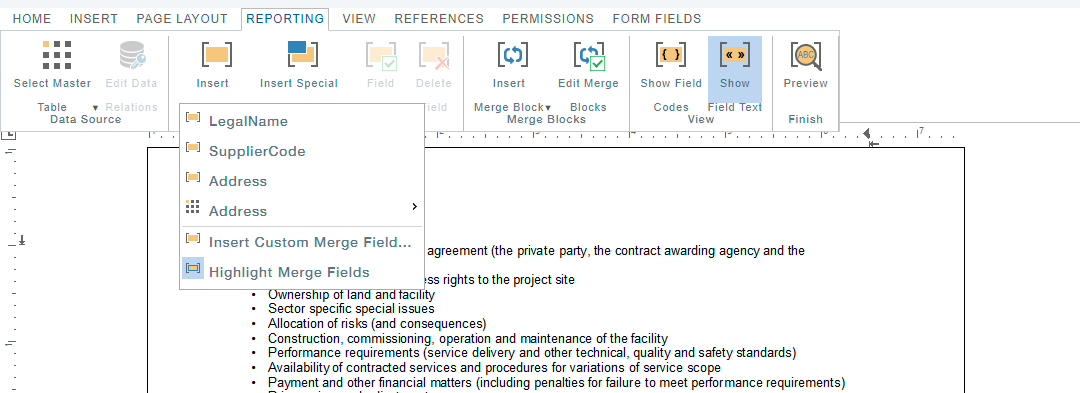
- Reporting tab:
- Under the Insert Merge field option, choose only the items that have child items assigned with them.
- Under the Insert Merge block option, right now only the Contract Items table is supported in the grid format.
- The tab Form fields are currently not supported.
3. Under the Reporting tab, to retrieve the data from the database, choose the masters and their child items, indicated using icon  only.
only.
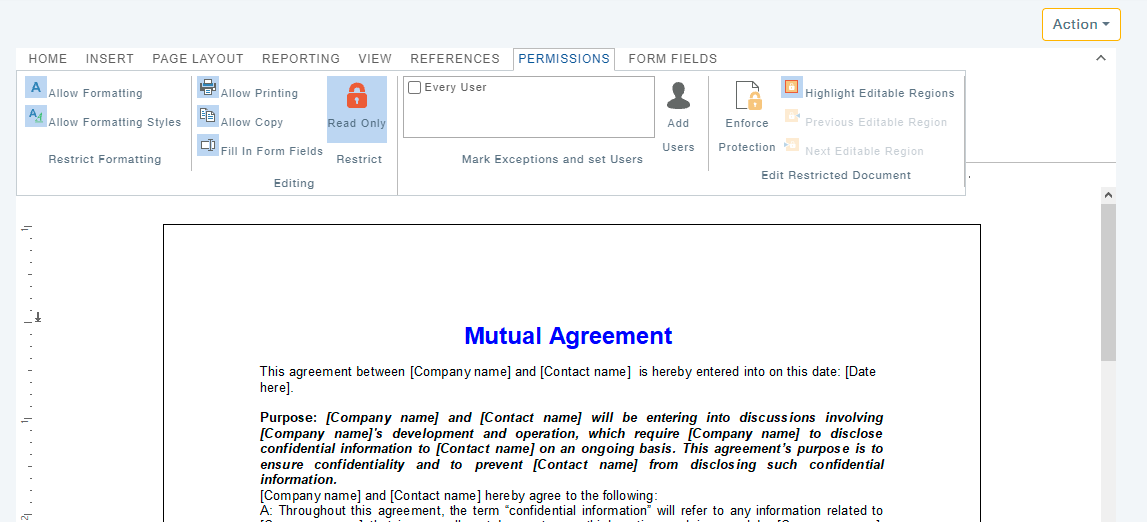
4. You can provide permission to the users under the Permissions as shown
5. The following options are available under
- Import Template: You can choose this option if you would like to upload the contract authoring template.
- . If you have chosen a template that requires Expiry date, you will be asked to specify the expiry date of the authoring document. Also, you can use the Expiry date date point to bring the dates inside the document. Once the expiry date is set, one more additional action will be available for expirable documents, i.e. Change document Expiry Date.
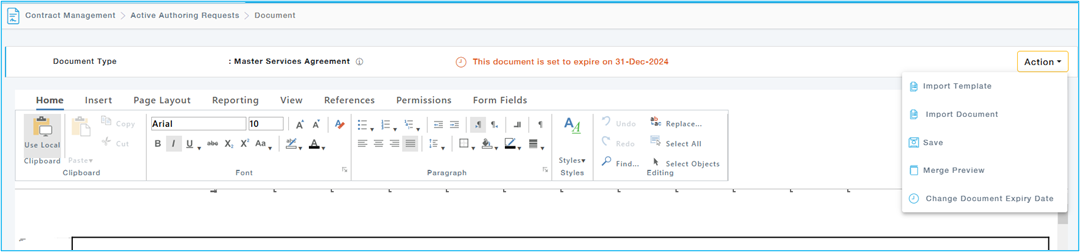
- Save: Click on Save to save the contract document.
- Merge Preview: Under-reporting, you can bring out the data from the database, and upon choosing the Merge Preview option, the data gets displayed on the document.
- Import Document: This feature enables the user to directly import a document specific to the contract without disturbing the formatting and without going through a Template process.
6. Once you click on the save button, you will be redirected to the Active Requests screen.
7. Now the Actions button will display the following Actions:
Action | Description |
View Request | View the Authoring Request with the details Document Type, Authoring Reason, Requestor, Supplier, Comments, etc. |
View Document | View the Contract Document |
Edit Document | Edit the Contract Document |
Submit for Approval | Once the Contract Document has been completely drafted, choose this option to Submit the Contract Document for Approval from Approvers |
Change Document Expiry Date | Provision to change the expiry date of the Authored Document. |