
Menu Path: Business Administration >> Attachment Type Master Management>> Create New
To create a New Attachment Type, click on the Create New Button.
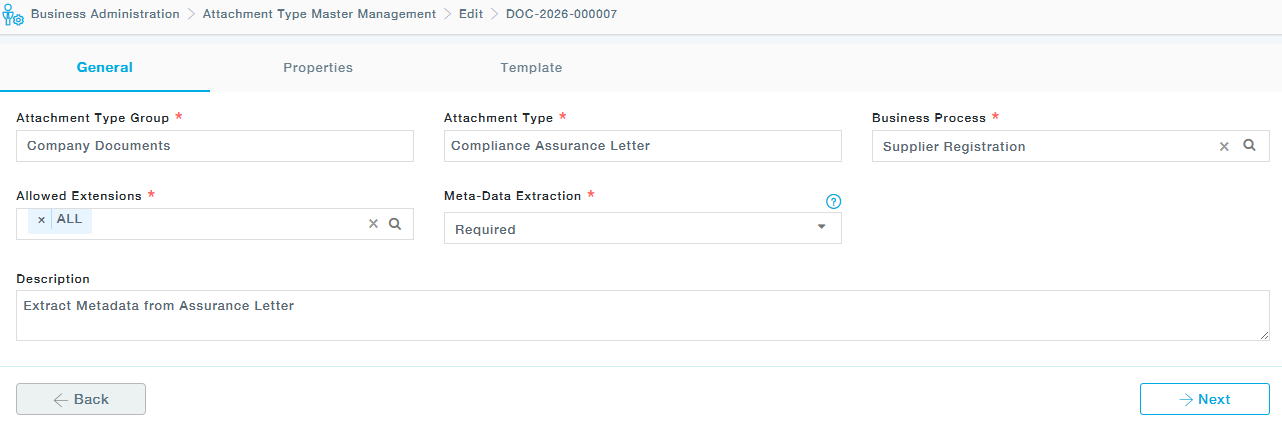
Create an Attachment Type Group or, if available, choose from the existing list (Previously created groups), Business Process is defaulted to Supplier Registration. Provide the Attachment Type and choose from the list of extensions. Provide the allowed attachment extensions of the files the supplier can upload.
Choose whether Meta-Data Extraction is required or not. If you choose “Required” in this, MeRLIN will use AI to extract specified meta-data from the uploaded document. List of meta-data to be extracted can be provided in the next tab. Provide a description of the Attachment Type in the Description field. Click Next to move to the next tab.
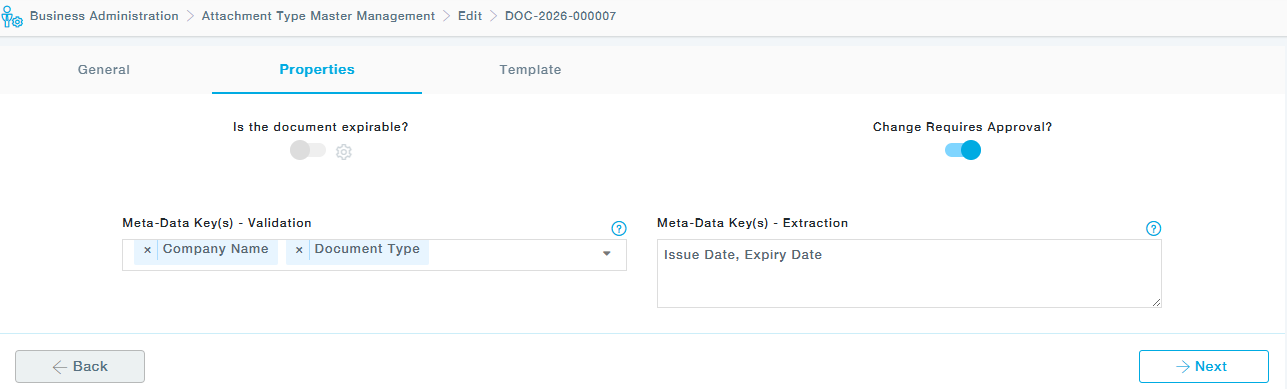
As we move to the next tab- Properties, we can set the document as an expirable document by switching on the Is the Document Expirable? button. The settings icon next to the toggle button can be used to modify the configurations by following the steps below.
Choose “Reminder to Supplier Before (Days)” from the list of available days. Suppliers will be reminded through Email on these days before the Supplier Document Expiry.
- Provide the number of days of the Grace period under “Grace Period (Days)”. The grace period starts after the Document Expiry.
- Choosing “Yes” under “Expiry Deactivates the Supplier” deactivates the associated Supplier after the Grace Period of the document. Choosing “No” has no impact on the Supplier status even after the Grace Period is over.
- Choose “Yes” under “Expiry Date Editable by Buyer” if the Document Expiry date can be modified by Buyers from the Supplier Document sub-menu.
Similarly, the next configuration option is “Change Requires Approval?”.
Use this toggle to decide whether updates made to the document type should go through an approval process.
- If you switch off the “Change Requires Approval?” toggle, any changes made to the document type will not require approval.
- If the toggle remains on, all modifications will continue to require approval.
Meta-Date Key(s) – Validation: Choose the relevant metadata from the list. MeRLIN compares the extracted values with the Supplier-provided details and highlights any discrepancies as errors.
Meta-Date Key(s)-Extraction: Provide the list meta-data as comma separated texts. MeRLIN will extract them, if available in the document, and display after upload.
Under the templates tab, you can define document templates.
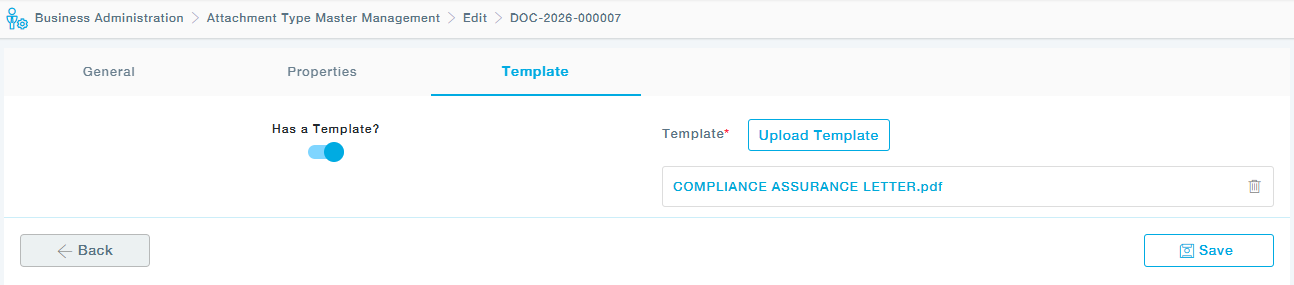
Upload the required template in this section. During registration, the supplier can download the template, complete the necessary details, and re-upload the filled file.
Click Save.