
Using the Create New RFI option, you can Create New RFIs in MeRLIN.
Menu Path: Sourcing Event Management >> Active RFIs
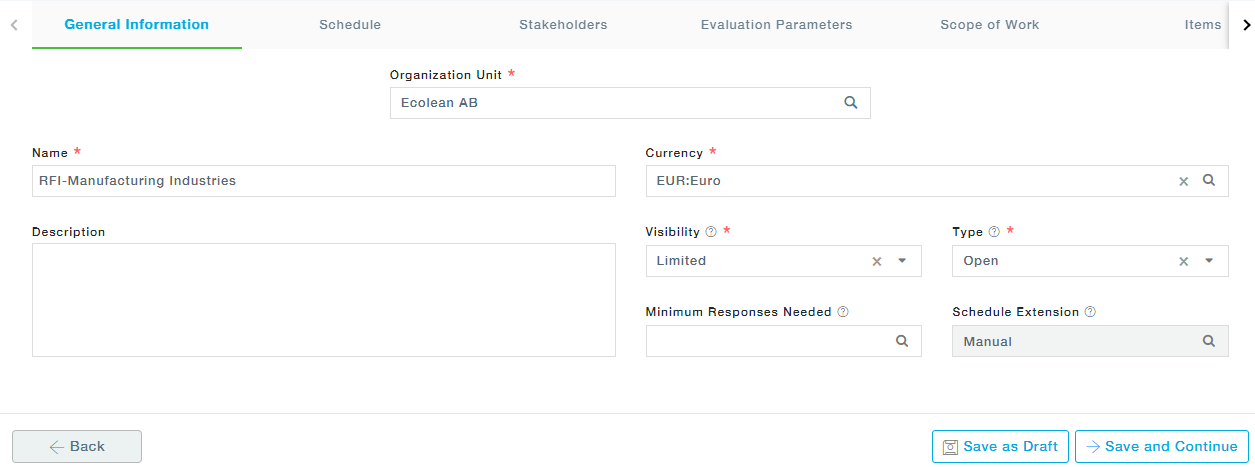
1.User Interface for creating new RFI. Fill in the general information.
Field Description
- Name: Name of the RFI
- Description: A detailed description of the RFI
- Organization Unit: Defaults the Organization Unit. If you have access to other organization units, you can select from the available list.
- Visibility: Public, Limited
For Public RFI the email notifications regarding the RFI will be sent only to those “preferred suppliers” who have been mapped against the selected category. All the other suppliers will not receive email notifications instead, the RFI will be available in the RFI Management section in the Supplier Portal.
- Type: Sealed Tender- No one except the associated Supplier will be able to view the responses until the Bid Opens. Supplier responses will be stored in an encrypted format until then in DB too.
Open- The response can be viewed by the Stakeholders as the Suppliers respond.
- Currency: Desired currency can be chosen from the list of currencies.
- Minimum Responses Needed: This number will determine the minimum number of responses needed to make a comparison, in case of fewer responses, one of the following can happen
- Response End Date can be extended or
- Despite extensions, if the responses are not sufficient, the RFI can only be closed
- Schedule Extension: In case less than minimum responses,
- Automatic – the schedule is extended automatically by the system
- Manual – the User will be expected to change the Response End date.
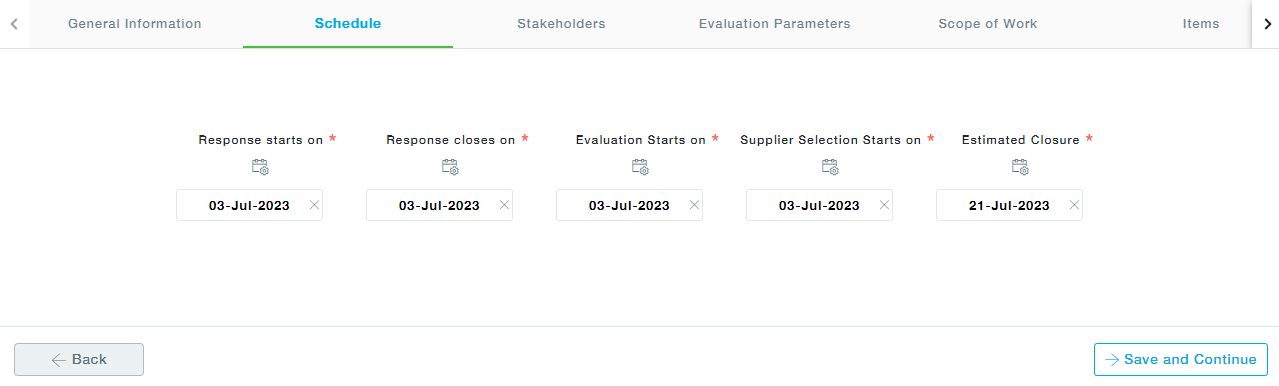
2. Schedule the Response Start Date, Closing Date, Evaluation Start Date, Supplier Selection Start Date, and Closing dates as shown.
Click on “Continue” to proceed.
3. Under the Stakeholders tab, click on the Add Stakeholder button to map users to Stakeholder Roles.
In the pop up window that appears, choose stakeholder type and associated stakeholders.
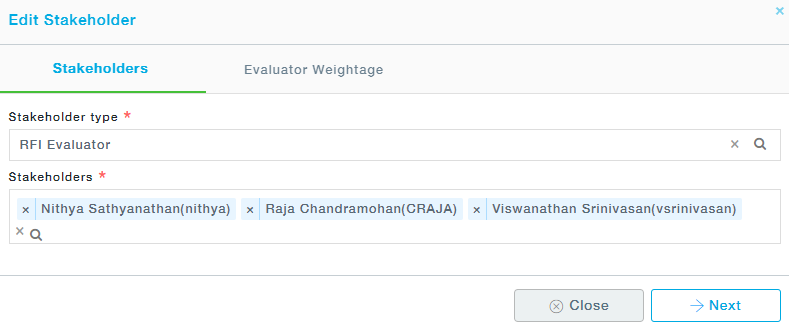
Available Stakeholders:
- RFI Evaluator: Evaluate the Supplier and provide an appropriate score
- Early Opener: Open the Sealed responses before the response due date
- Minimum Response Override: Open the sealed RFI even if the minimum no of response condition is not met
- Chief RFI Evaluator: Performs final evaluation and selects the supplier
Click on Next to provide weightage to each evaluator.
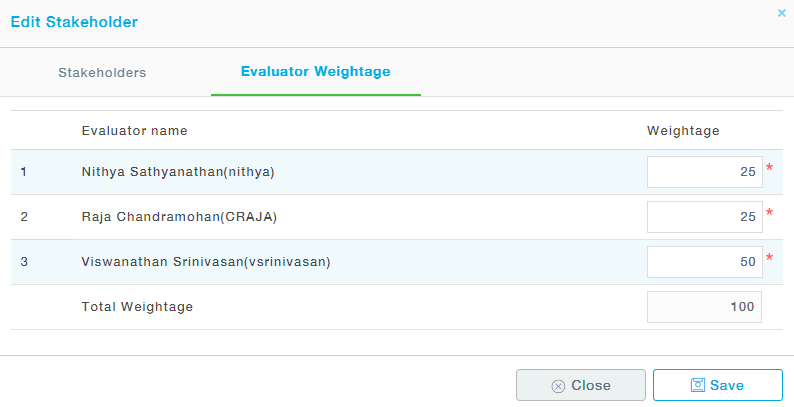
The weightage tab is available only for the RFI Evaluators. For all the other stakeholder types, just choose the Stakeholders and save. Click Save to save the details.
Once all the stakeholders have been added, they can be edited or deleted. Click on Continue to proceed to the next tab.
4. Under the Evaluation Parameters, click Add Parameters. Select one or more evaluation parameters. Click on Next button to add the weightage for each parameter. Save the form and proceed to the next tab. Note that the suppliers will be selected based on these evaluationparameters during the RFI evaluation.
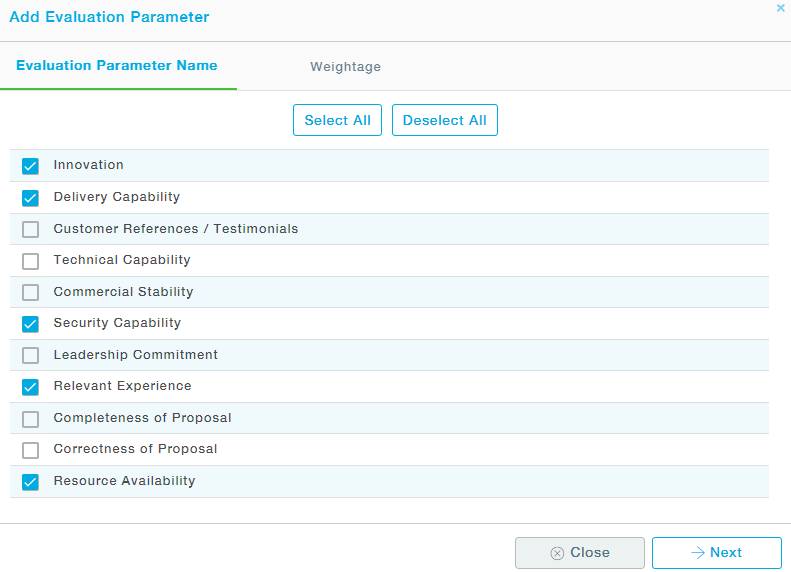
Note: Evaluation Parameters can be added through the Business Administration under User Defined Codes under RFI Committee Evaluation parameter.
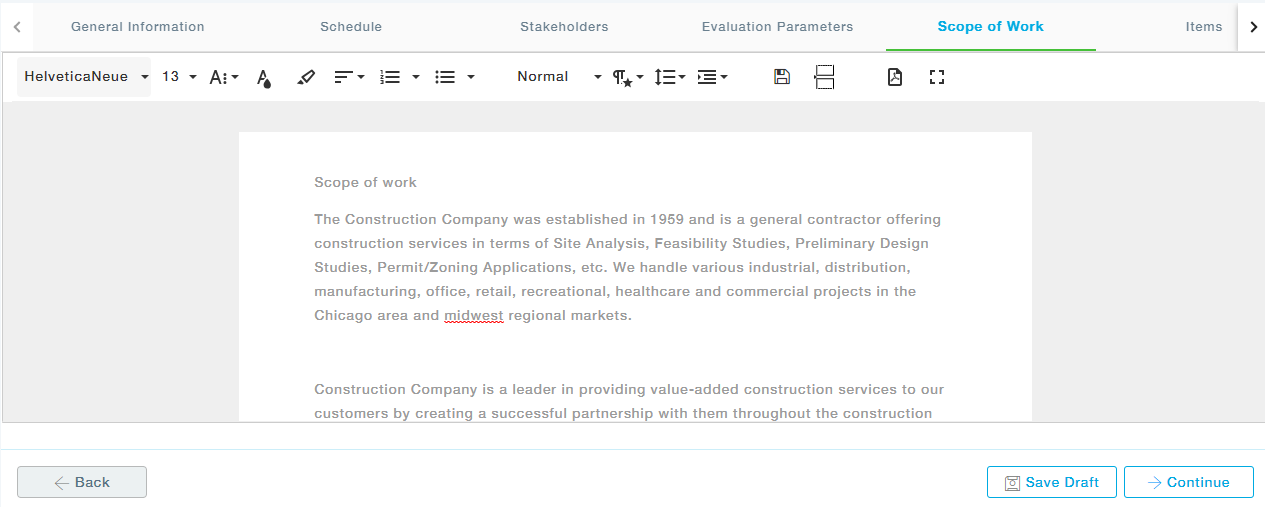
5. Provide the Scope of Work.
Provide more information regarding the RFI to the Suppliers. You are provided with a Text Editor – WYSIWYG Editor to perform the same. Various images, tables, etc. can be added along with Text.
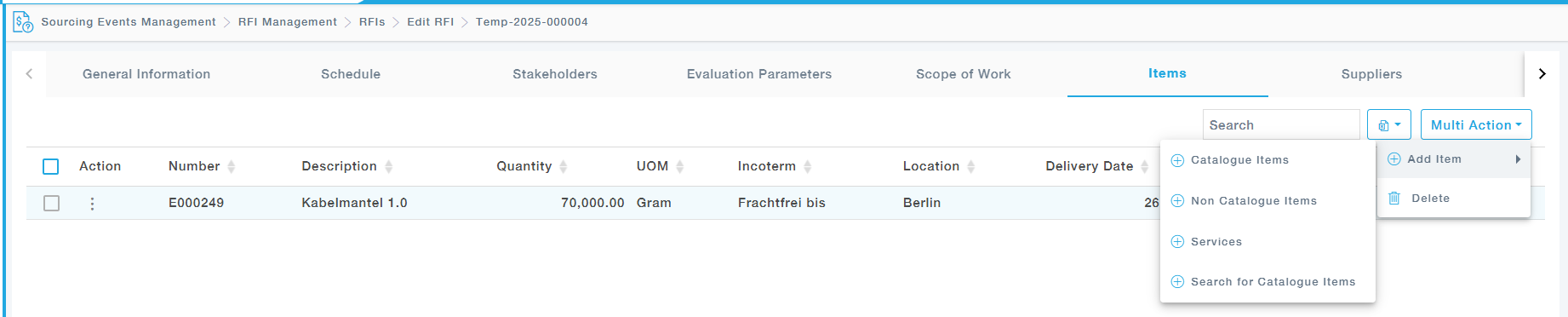
6. Under the Items tab, you can add new items to the RFI by clicking on the Add Item button. You can upload either a catalogue item, non-catalogue item, or service.
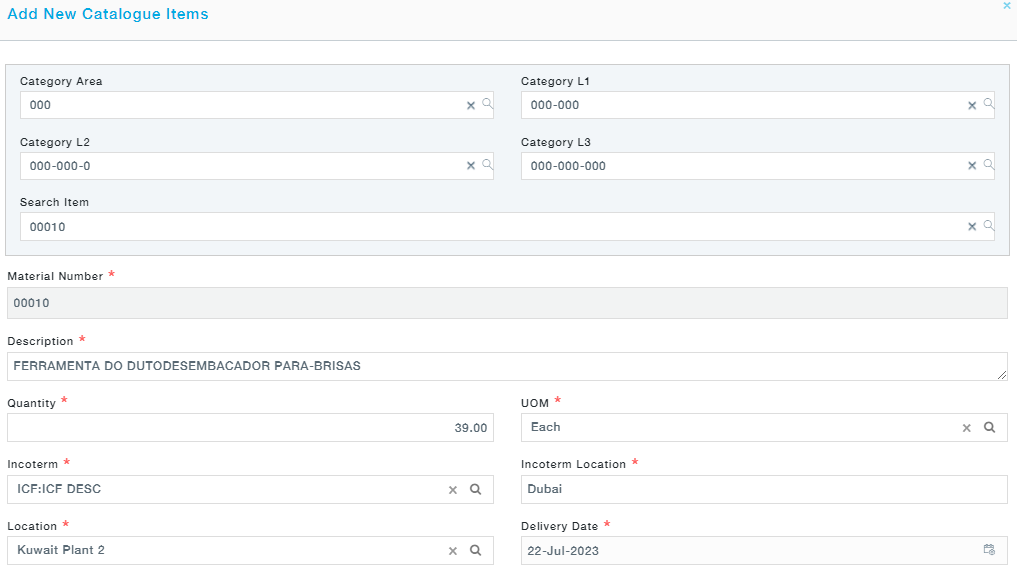
To add a Catalogue item, choose the Catalogue option from the dropdown and fill in the details of the items and click on Save and Close.
To add a non-catalog item (temporary part), choose the Non-Catalogue option from the dropdown and fill in the details of the items and click on Save and Close.
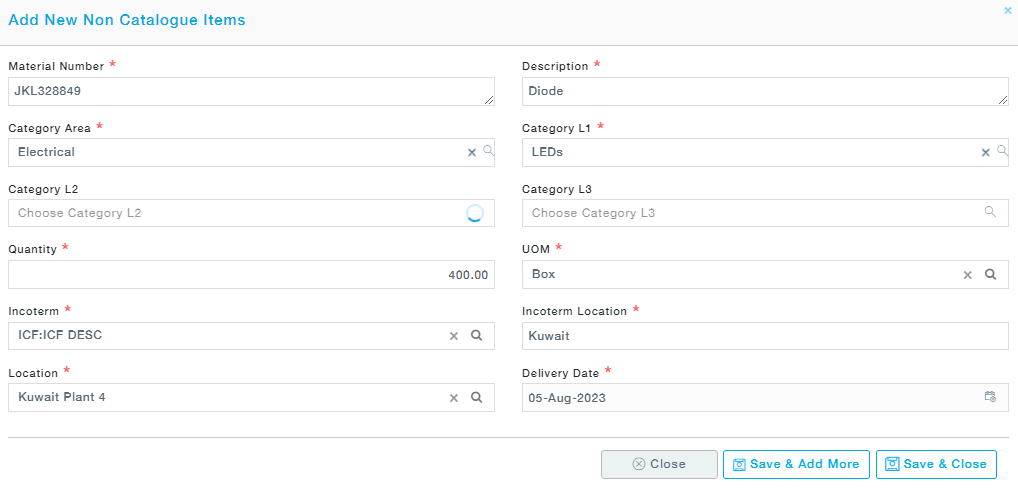
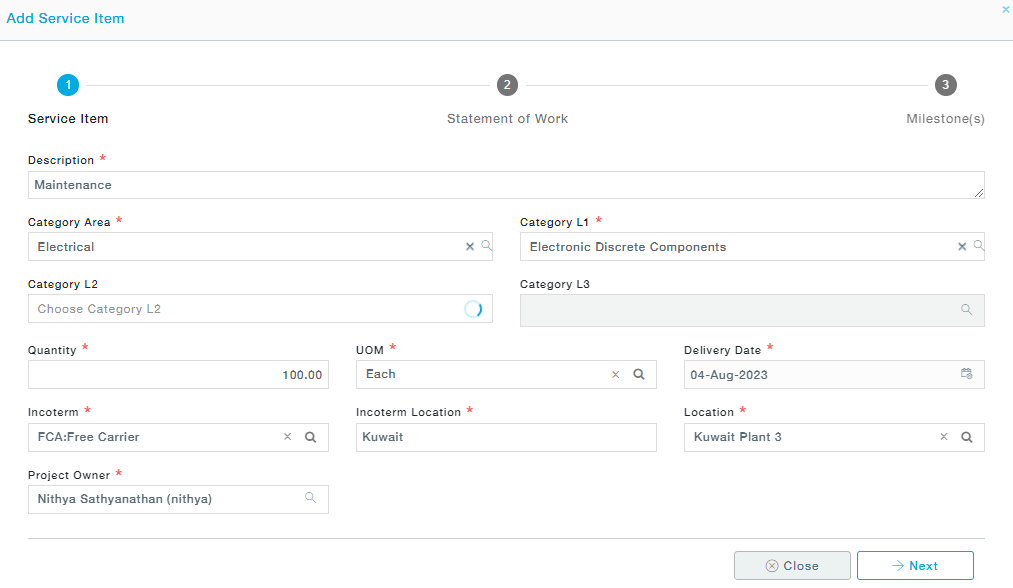
Similarly, To add a service, choose the Service option from the dropdown and fill in the details of the items and click on Save and Close. Provide the Dettails of the Service item.
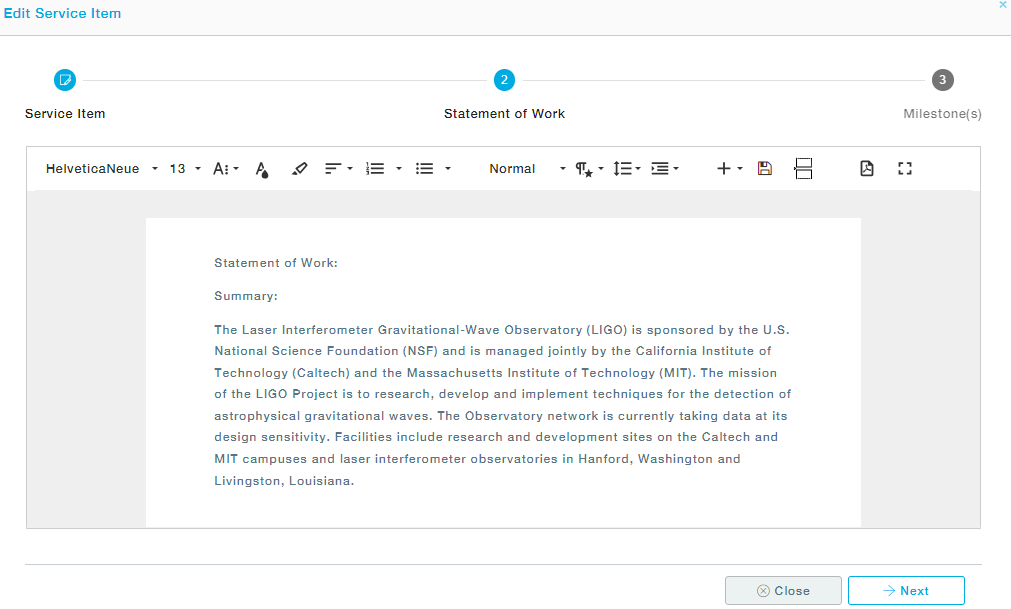
Enter the Statement of Work.
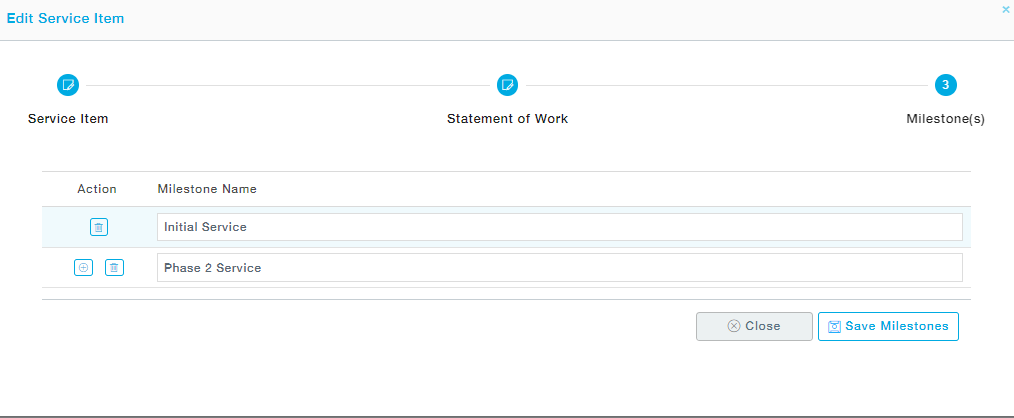
Provide one or more milestones for the service.
Under the Items tab, you can download the template for either a catalogue item, non-catalog items, to upload the items in bulk.
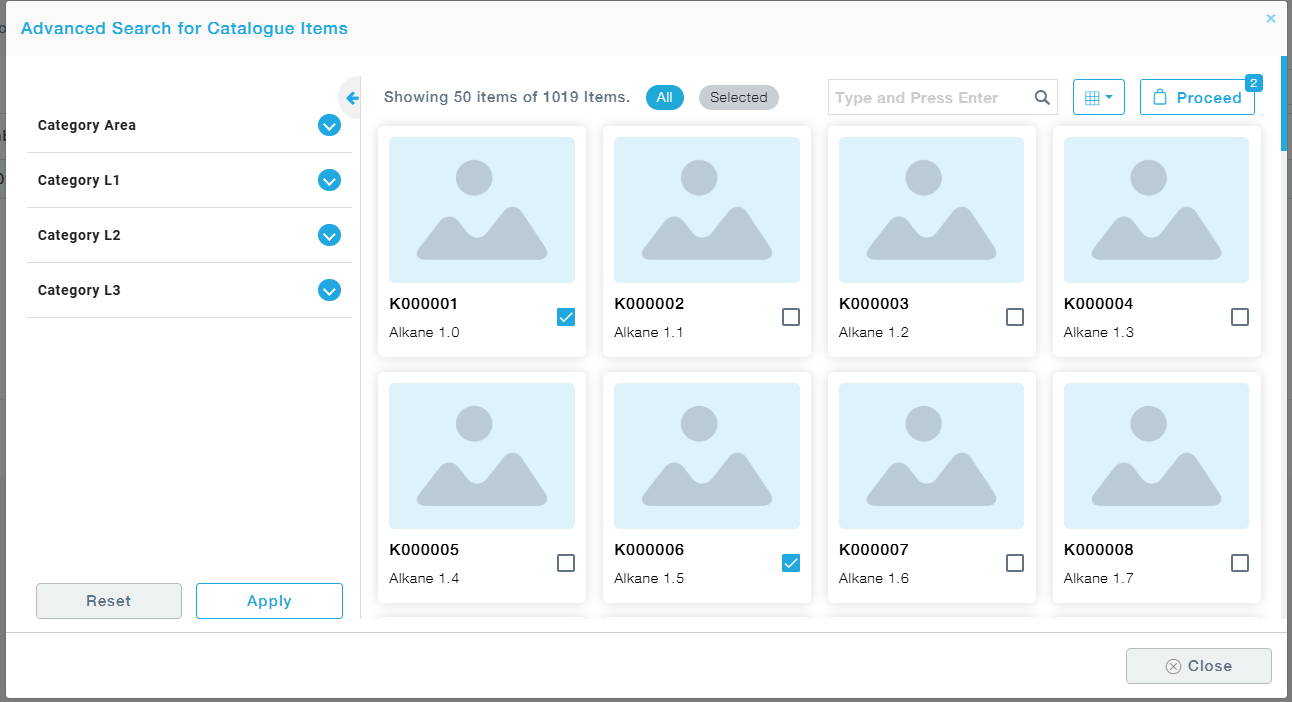
Search Catalogue Items: The search for catalogue items options allows the user to choose multiple items at one go.
7.Under the Items tab, you can download the template for either a catalogue item, non-catalogue items or a service.
The Excel template for Catalogue items is shown below The excel template for Non- Catalogue Items is shown below
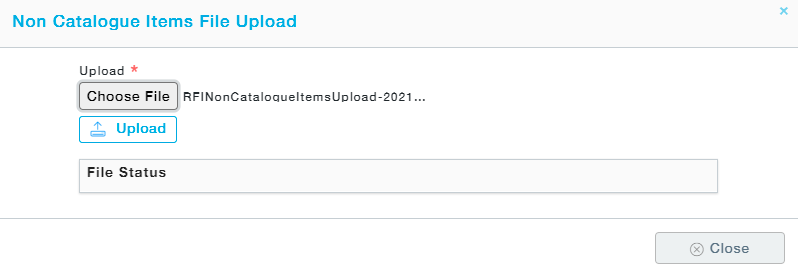
8.These excel sheets can be filled and uploaded using the upload option.
In the pop-up screen that appears, choose the file and click on the upload button.
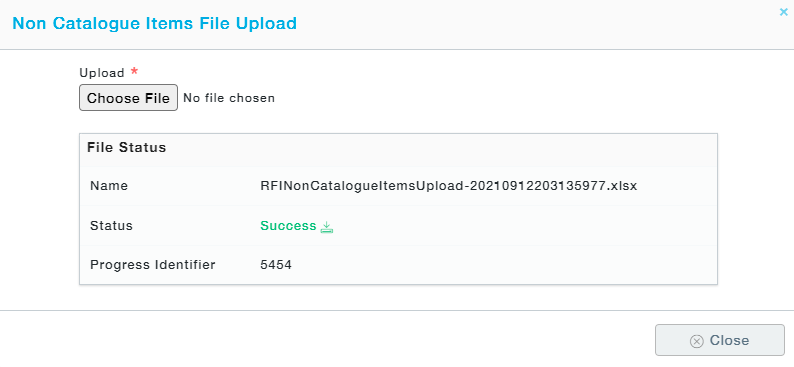
9.Once the file has been successfully uploaded, click on Close button.
10. Now click on the Continue button to move to the adjacent tab.
11. The supplier selection process within the RFI has been significantly enhanced by revamping the user interface. The new interface allows users to view all suppliers in a structured grid format with advanced capabilities such as:
Left-hand filter panel with filters by country, region, etc.
Text-based search functionality for easier supplier lookup.
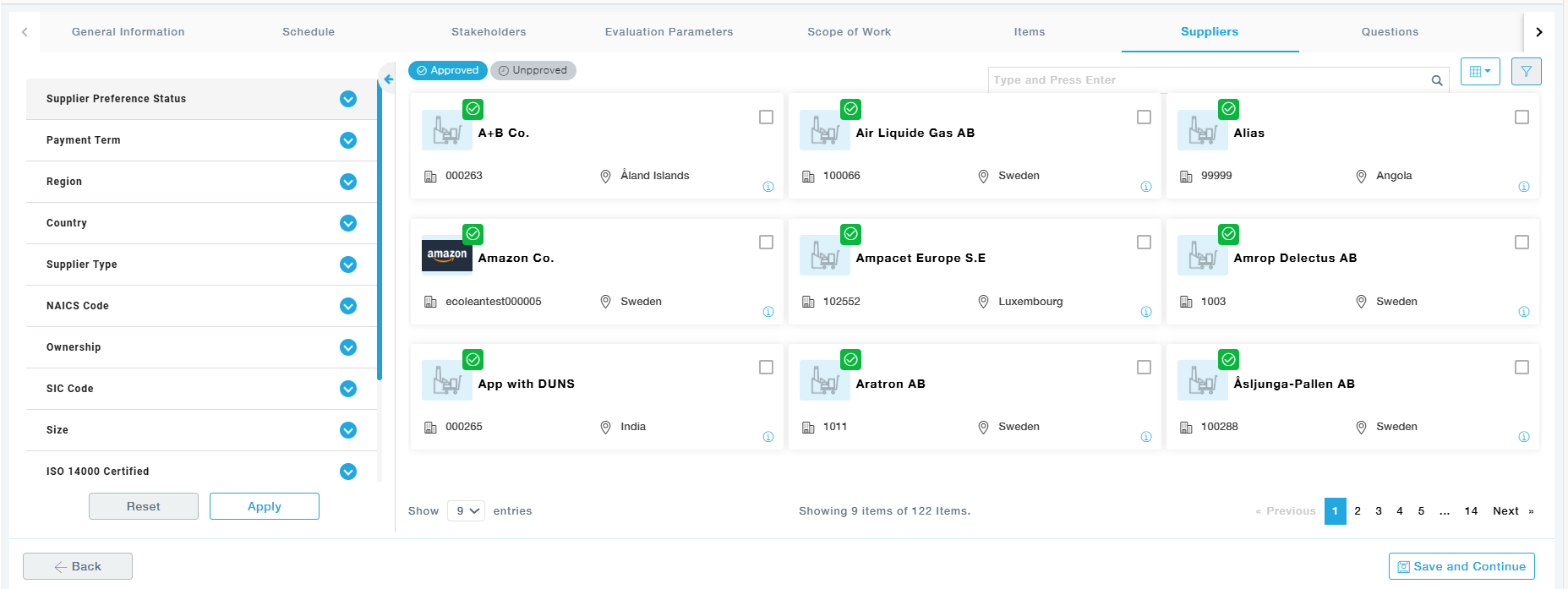
Note: For Limited RFIs, only the Suppliers selected will be able to participate. In Pubic RFIs, the Supplier tab can be left empty. In addition to the selected suppliers, other suppliers will also be allowed to participate. Also, the selected Supplier should have a valid RFI/RFQ contact.
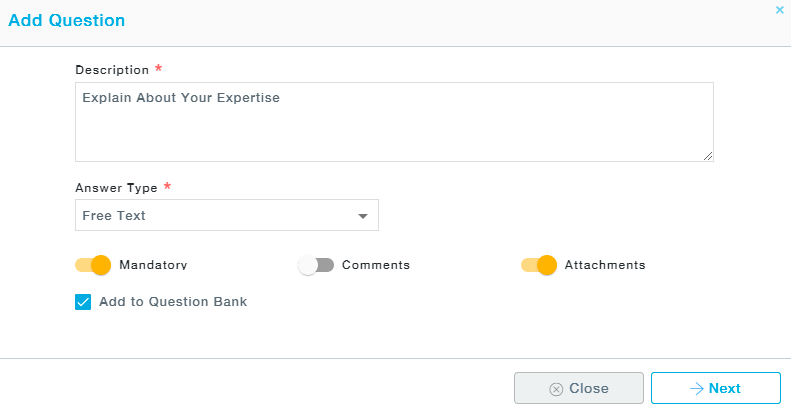
12. Click on Create New to add new questions to the RFI. A template of questions can also be chosen.
While adding new questions, the User can describe the question and choose the type of question such as whether it is a multiple-choice question, single choice, free text, description, numeric, date, etc. from the Answer type dropdown. Select Mandatory to make sure the Supplier answers the specified question before proceeding further with the RFI.
The single-choice questions have weightage and the options have marks associated with them. The Suppliers are selected based on the score obtained by the Suppliers.
Enabling attachments will let the Supplier attach supporting documents and the Supplier can attach up to 5 documents per question. If you would like to get this question added to the Question bank, so that it can be used again, select the Add to Question Bank check box. Click on Next to get the question added to RFI.
13. Click on the Add Document button to add documents to the RFI.
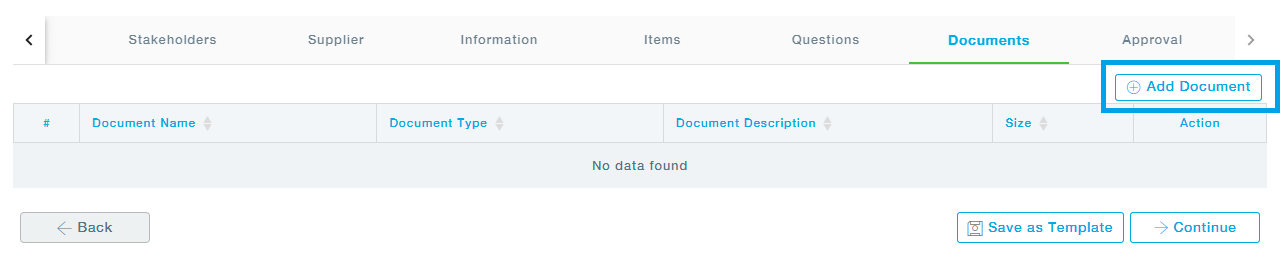
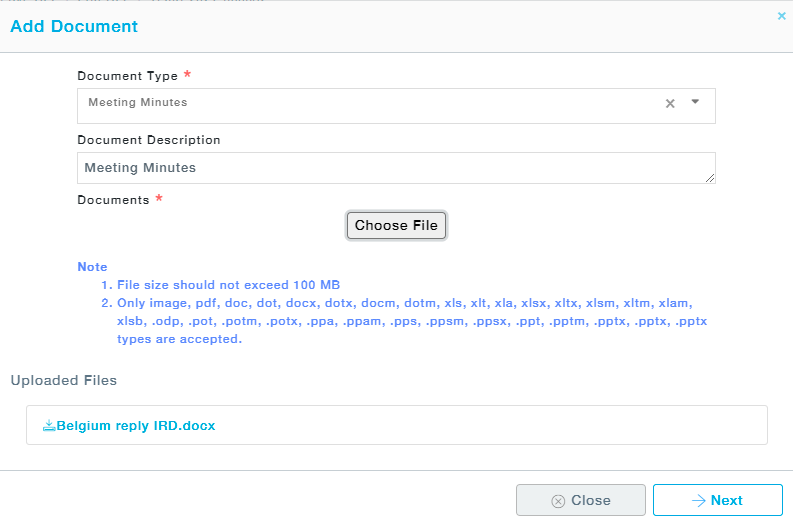
14. Choose the document type, document description. Then choose the document by clicking on the Choose file button. Click on the Next button to get the selected document added to the RFI.
Also, at this stage, you are provided with an option to save the RFI as a reusable template. Click on the Save as Template to save the RFI. This can be used again. These templates will be available under the Templates section that can be accessed under the RFI management.
15. Now move on to the Approval screen to choose the approvers for the drafted RFI.
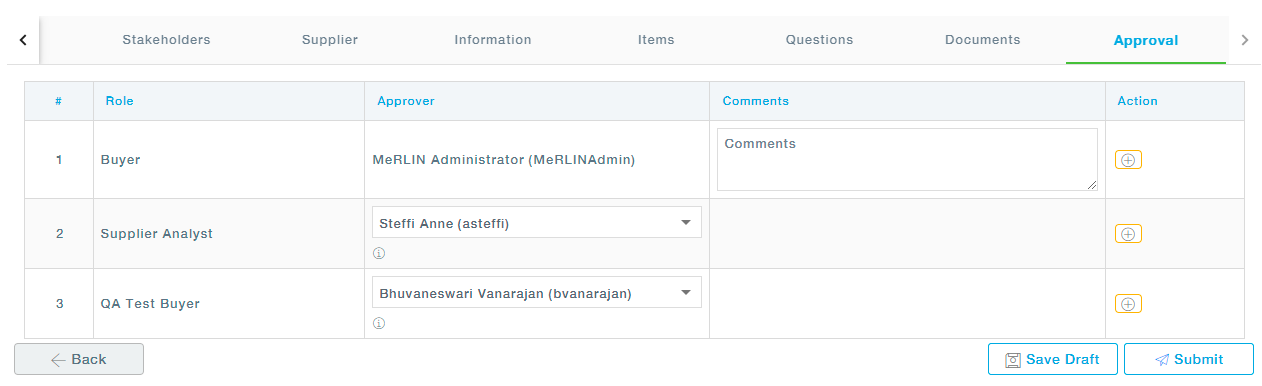
Note: Click on the + icon under the Actions to get a new approver added to the existing list of approvers. You can also delete such additional approvers once added.
Click on the Submit button to Submit the RFI for Approval.
Once approved by the approvers, publish the RFI to the Suppliers.